Delete your data in Kasha
At Kasha you have full control over your information. You can delete only your financial data while keeping access, or close your account completely and delete everything. Both options are managed directly from the app, with no need to contact us.
1. What data is deleted and what is kept
The following table summarizes what happens to each category of data in Kasha depending on the option you choose:
| Data type | Financial data only | Full account | Additional retention period |
|---|---|---|---|
| Transactions, accounts, budgets, custom categories and recurring transactions | ✓ Deleted | ✓ Deleted | None (≤ 30 days) |
| Access data (email, account identifier) | ✗ Kept | ✓ Deleted | None |
| Premium subscription status and data | ✗ Kept | Partially kept | Up to 7 years (tax obligation) |
| Push notification token | ✗ Kept | ✓ Deleted | None |
| Google Drive backups | ✗ Not managed by Kasha | ✗ Not managed by Kasha | Under user control |
| Technical service logs | ✗ Not affected | Automatic deletion | Maximum 90 days |
2. How to access the deletion screen
From the Kasha app, follow this path:
3. Option A — Delete financial data only
Deletes transactions, accounts, budgets, custom categories and recurring transactions. Your Kasha account stays active: you can keep using the app as usual.
The selected financial data cannot be recovered once deleted.
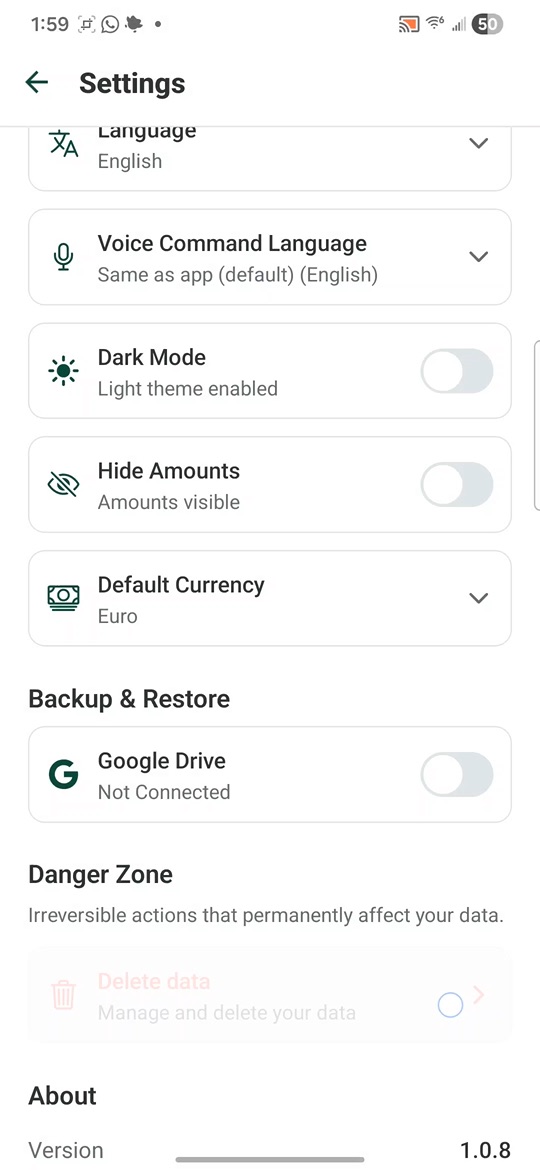
Settings → scroll down to Danger Zone
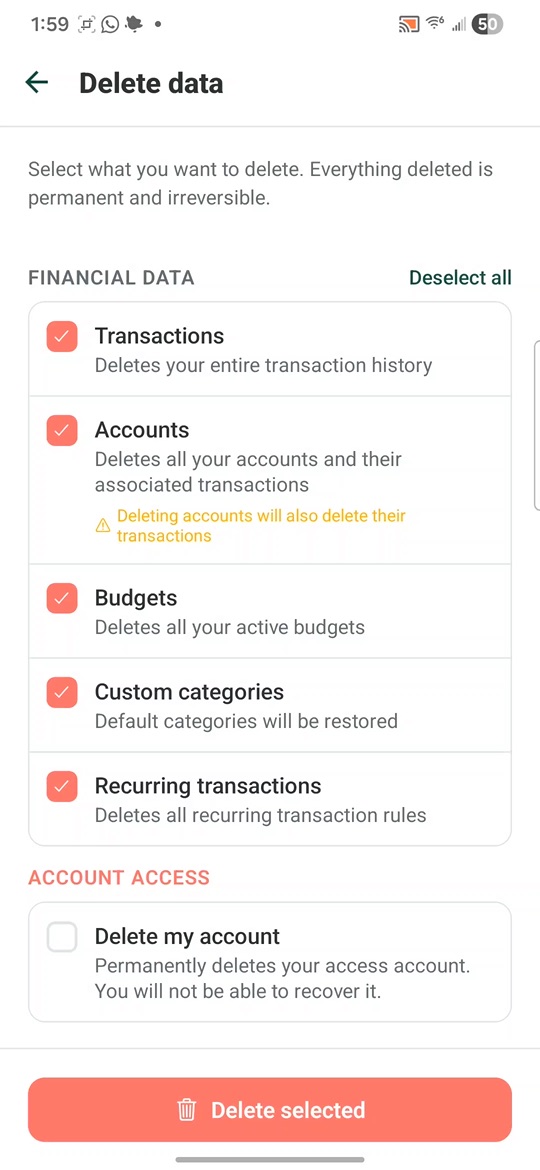
Check only the financial data
-
Open Settings
Tap the gear icon (⚙) on the Kasha home screen.
-
Go to Danger Zone → Delete data
Scroll to the bottom of Settings and tap Delete data in the Danger Zone section.
-
Select the financial data
In the FINANCIAL DATA section, enable the categories you want to delete: Transactions, Accounts, Budgets, Custom categories, Recurring transactions. Leave the ACCOUNT ACCESS section unchecked.
-
Tap "Delete selected" and confirm
The app will ask for confirmation before proceeding. Once confirmed, the data is permanently deleted within a maximum of 30 days. Your account stays active.
4. Option B — Delete account and all data
Deletes your user, all financial data, and revokes access to Kasha. This action corresponds to the right to be forgotten (Art. 17 GDPR). Once completed, you will not be able to regain access with those credentials.
Your account, financial data and active subscription will be deleted. This action cannot be undone.
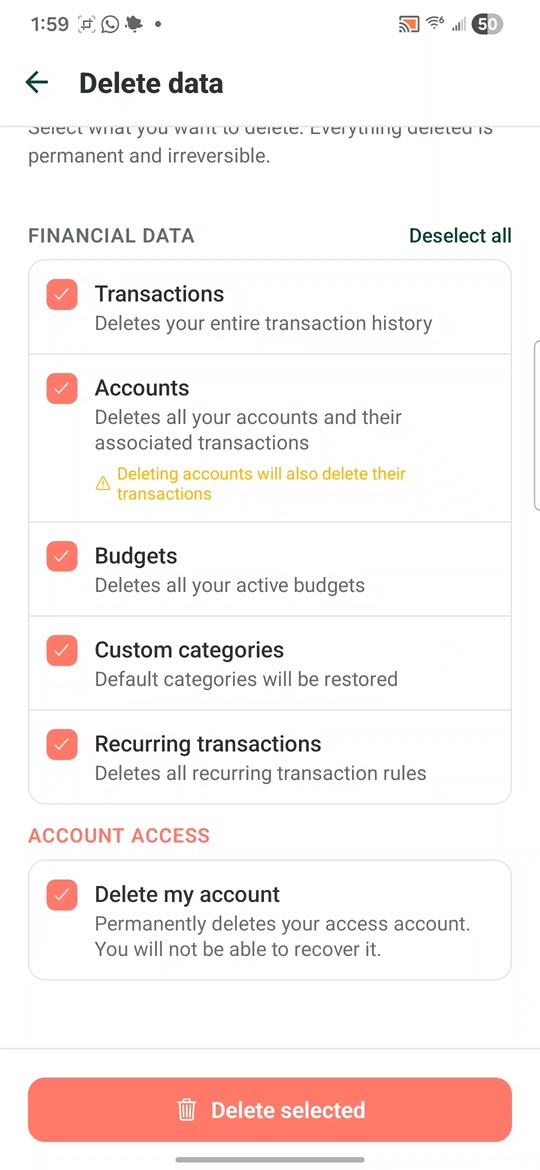
Enable everything, including your account
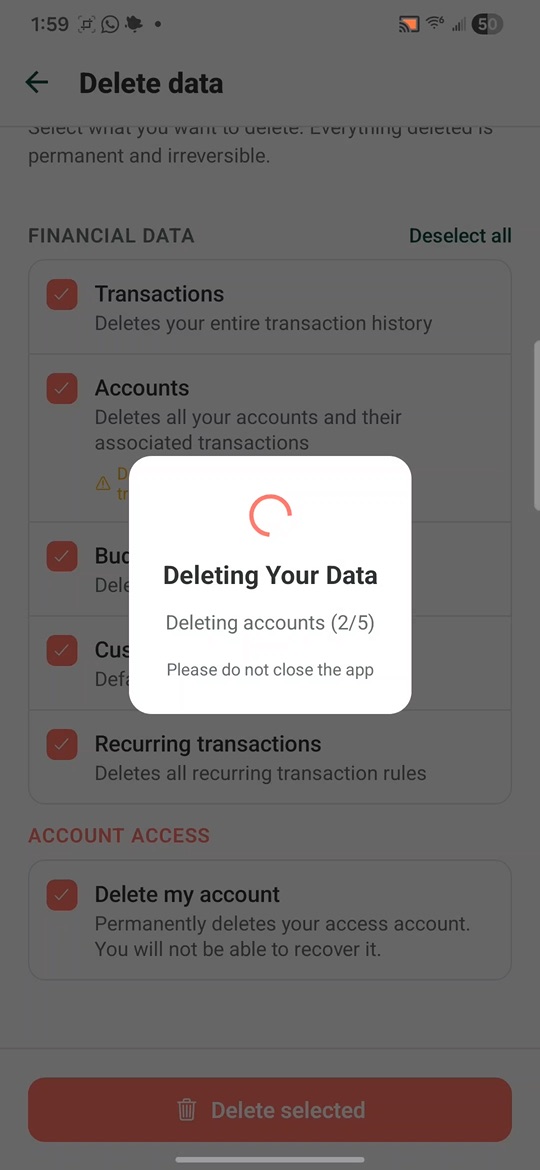
Deletion in progress
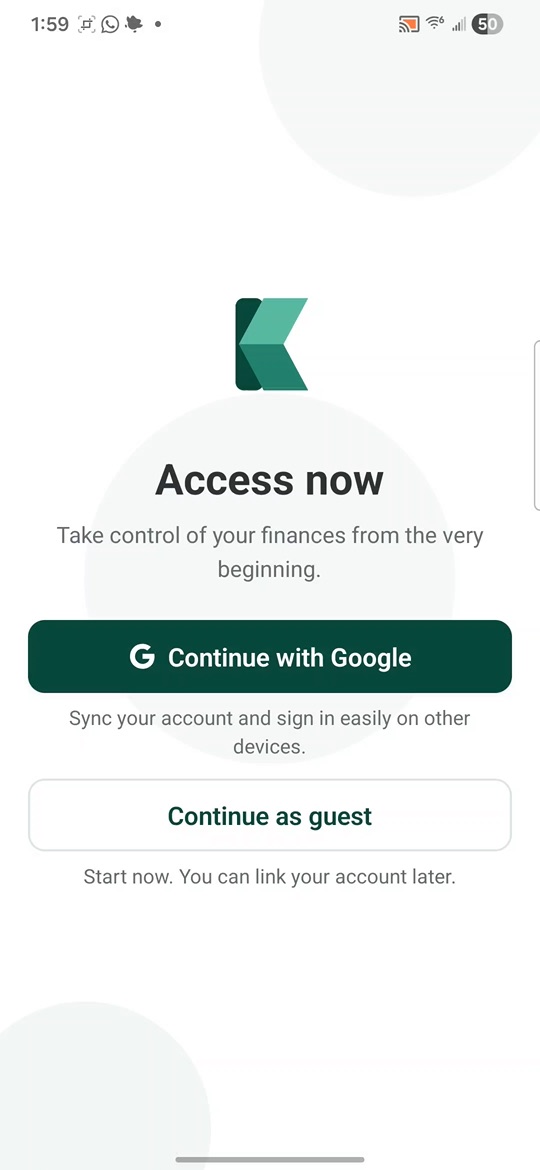
Account deleted — the app returns to the start
-
Open Settings
Tap the gear icon (⚙) on the Kasha home screen.
-
Go to Danger Zone → Delete data
Scroll to the bottom and tap Delete data in the Danger Zone section.
-
Enable all categories, including your account
In FINANCIAL DATA, enable all categories. Then, in ACCOUNT ACCESS, also enable Delete my account to remove your access permanently.
-
Tap "Delete selected" and confirm
The app will show a confirmation dialog. Once confirmed, the process begins and cannot be interrupted.
-
The app returns to the login screen
When finished, Kasha automatically redirects you to the start — your account has been deleted. Complete deletion from servers occurs within a maximum of 30 days.
Due to tax and accounting obligations, the Premium subscription history may be kept for up to 7 years from the last transaction. See the Privacy Policy, section 6 for more details.
5. Google Drive backups
If you enabled the backup feature, your files are stored in your personal Google Drive account. Kasha does not have access to them and does not manage their deletion. To delete them:
-
Access Google Drive
Go to drive.google.com and sign in with the Google account linked to Kasha.
-
Find and delete the Kasha folder
Locate the folder generated by Kasha, select it and delete it. Also empty the Google Drive trash to make sure the files are permanently removed.
Need help with your request?
If you have trouble accessing the app or prefer to request deletion by another means, write to us. We process your request within a maximum of 30 days.
Request deletion by emailSee also: Kasha Privacy Policy